Table of Contents
Paid Analysis
Home
Paid users can select up to 4 years of data for analysis, and, if you have paid for more than one business to analyse, you can click the + button to create a new business.
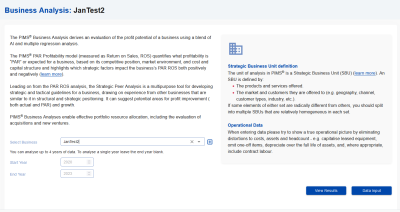 If you have already entered data for the business, you can click on the View Analysis button to go straight to the output screen, otherwise press the Next or Edit input data button to progress to the Data Input screens to enter your data.
Data Input
Business Profile
At the top of this section you define the currency and scale to use when entering financial data. The rest of the screen is split into 2 sections:
The first section defines key structural factors for your business:
- The currency used entering financial
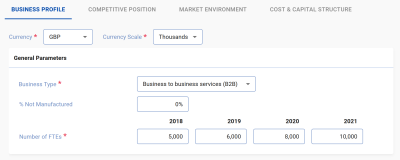 data
data - Business Type: an overall business classification into 1 of 6 categories.
- The % of products not manufactured: What percentage of your sales involve no manufacturing process at all (e.g. services or bought in goods).
- The number of employees in the business unit.
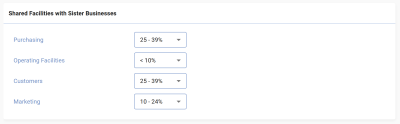 The second section details resources such as plant, marketing and customers which are shared with other
businesses in the company. Like many fields in the softwarethese comprise drop down menus with a range of choices rather than asking for precise numbers.
The second section details resources such as plant, marketing and customers which are shared with other
businesses in the company. Like many fields in the softwarethese comprise drop down menus with a range of choices rather than asking for precise numbers.
Competitive Position
The Competitive position page is divided into 4 sections:
The first section details the Market Shares of your business and its main competitors:
- Your market share in value terms.
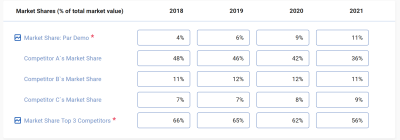
- The market share of each of the 3 largest competitors in the market in descending order of share.
- The combined share of the 3 largest competitors in the market excluding your business.
It is important to correctly define your market, making it too broad means you are not necessarily competing with the largest competitors and understates your share (i.e. if you are competing in a specific region but are considering the worldwide market), or you define it too closely and ignore competing technologies.
The second section looks at Customer Value and Innovation data:
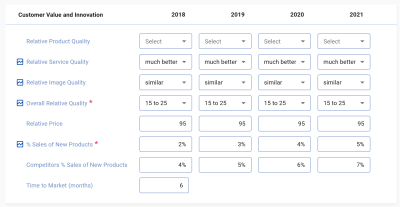
- The relative perceived quality of your business split into product, service and image quality.
- The overall relative perceived quality of your business.
- Your businesses price relative to a market average of 100. A relative price of 105 indicates you are 5% above the average price of competitors, 95 indicates you are 5% below the average.
- Your Business’s % of sales from new products: The definition of new products does not include things like changes in pack sizes or slight modifications to existing products but are step changes, offering a new function to an existing market or an existing product to a new market.
- An approximation of your competitors % sales from new products.
- An approximate time to market for a typical new product launch.
Relative quality is a measure of your business’ performance on non-price attributes relative to your competitors from your customers perspective. A value of less than zero indicates that your customers think you have a worse than average quality relative to competitors, greater than zero that they think you have a better than average quality product compared to your competitors. The range goes from -50 to +50 with the extremes representing very large differences in quality.
Relative service quality is a guide as to whether you offer better or worse associated services (e.g. after sales support, delivery, etc.) than your competitors.
Relative image quality measures how your business / brand is viewed compared to competitors.
The third section details your Relative Cost position 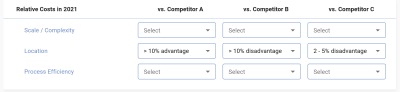 versus each competitor in the latest year, i.e. do you have scale advantages (or disadvantages), location advantages (close to market, cheaper labour cost, cheap energy), or process advantages which together determine the overall relative cost position.
The final section looks at Relative Complexity and has two fields to give an indication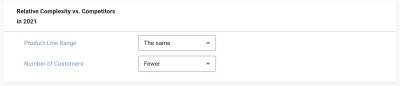 of positioning differences vs competitors In the latest year:
- Do you have a wider or narrower range of products than competitors
- Do you have a wider range of customer types than your competitors.
Press Next to go to the next page, Back to go back to the business profile page.
Market Environment
The Market Environment page is divided into 2 sections.
Growth and Inflation:
- Real market growth, which is the inflation adjusted average annual market growth rate.
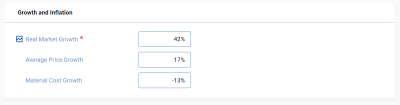
- Average Price Growth, which, as it says is the average annual change in prices.
- Material Cost Growth, which is the annual percent change in the cost of your purchases due to price inflation.
The Customer Characteristics section is split in 2 halves. The first asks for details of customisation and the types of customers you sell to, namely:
- The % of your sales which are specifically customized for individual customers.
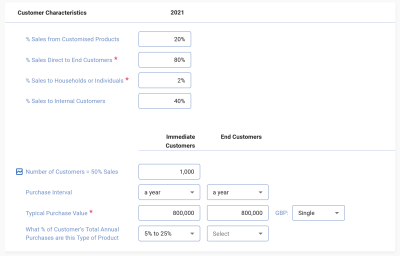
- The % you sell directly to end customers rather than through wholesalers or retailers.
- The % of your end customers who are individuals or householders.
- What percentage, if any, are sold to customers within your organization.
The second details some characteristics of both the immediate and end customers of your business. Immediate customers are those that you directly sell to, and end customers are the final customers who buy your product. So for a confectionary company the immediate customer is the supermarket chain or wholesaler, and the end customer the person who buys it in the shop. However, if you are selling gearwheels to a gearbox manufacturer they are both the immediate and end customer as purchasers further down the supply chain are buying the gearbox (or car) and not your product. We ask for:
- Number of immediate customers = 50% sales. This is the smallest number of customers who you sell to directly who account for half of your sales value and is an indication of how reliant you are on a small number of customers.
- What is the typical purchase interval, i.e., on average approximately how often do you immediate and end customers buy your product.
- What is the typical purchase (contract) amount for both immediate and end customers.
- The % of customers annual purchases do you account for. This gives a measure of your supplier power.
Press Next to move to the to the Cost and Capital Structure section.
Cost and Capital Structure
This page asks for high level Income Statement and Balance Sheet data:
- Sales revenue is the sales value in the currency (and scale) entered in the business profile page.
The following fields can either be entered (and displayed) as values or as a % of sales by switching the toggle at the top of the screen.
- Purchases: The cost of raw materials,
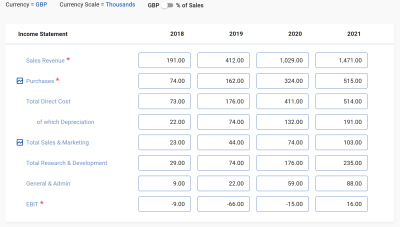 energy, and inbound freight.
 - Total Direct Cost: The cost of manufacturing, distribution and depreciation (i.e. including depreciation below). This includes wages & salaries of direct labour, manufacturing supplies, direct overheads, and transport logistics and warehousing.
- Depreciation: The annual depreciation charge on your business’s plant and equipment including lease payments on long term leases.
- Total Sales & marketing costs including the sales organization, advertising and promotion, customer service, market research and other marketing costs.
- Total research & development costs including R&D services purchased from outside the business.
- General & Admin costs: All costs related to general management, planning, accounting, controlling, HR, IT, procurement, legal, HSE, etc. Include people costs, offices, supplies, utilities, outsourced services, and relevant charges from corporate HQ.
- EBIT: net earnings (profit) before investment and tax.
As in the Income statement, the balance sheet fields can either be entered (and displayed) as values or as a % of sales by switching the toggle at the top of the screen:
- Accounts Receivable: the average
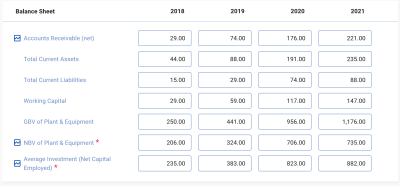 value of receivables during the year, net of allowances for bad debts.
 - Total Current Assets: the sum of receivables, total inventory, and other current assets.
- Total Current Liabilities: accounts payable plus all other current liabilities.
- Working Capital: Total current assets minus total current liabilities.
- Gross book value of P & E: Value at book or historic cost for manufacturing or operating equipment, buildings, communication equipment, computers and transportation equipment. Include tooling etc. Capitalise plant and equipment and buildings that are held on long-term leases.
- NBV of plant and equipment: Fixed assets at gross book value minus accumulated depreciation.
- Average Investment: Fixed assets at net book value plus working capital plus other non-current assets.
Results
The results output is split into 3 sections using tabs across the top of the page:
Summary
This section (and the strategic peer analysis) are only shown if you have strategic peer analysis as part of your plan. It is divided into 2 sections:
Diagnosis which shows the overall results of the PAR ROS analysis.
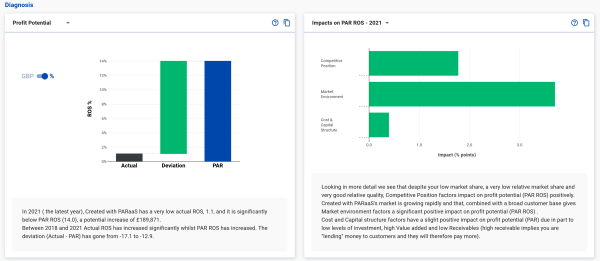 On the left is a Bar chart showing actual and PAR ROS for the latest year. If you have entered more than 1 year of data you can alos view time series data.
To the right you see the the impacts of the factors grouped into 3 categories: your competitive position; market environment; and cost and capital structure. Green bars indicate a positive impact and red a negative impact on PAR ROS. Again, if you have entered more than 1 year of data you can view time series data or bar charts for each year.
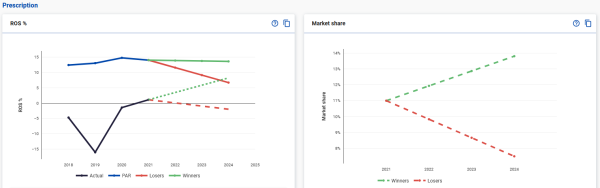
Prescription shows the trend for strategic peers which improved PAR ROS (winners) vs those whose PAR ROS decreased (losers) extrapolated from your data in the chart to the left, and the potential changes for a key indicator to the right. In both charts the area between the green and red lines represents the likely range of outcomes for your business.
Profit Potential Analysis
THis section shows detailed results of the PAR ROS analysis.
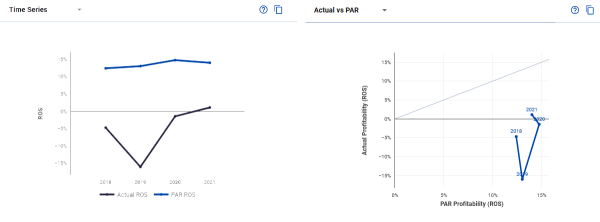
The Summary Findings section displays charts showing actual ROS against PAR ROS on the left and details of the results to the right.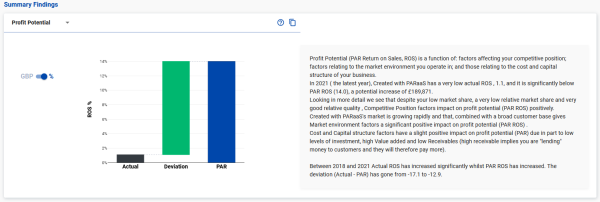 If you have entered more than 1 year of data, you can view timeseries metrics and an actual vs PAR chart in this section.
The Profitability Section contains two charts split into 5 segments (quintiles).
The first shows the distribution of PAR ROS 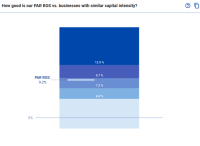 for businesses with similar capital intensity to yours, and is a measure of how your PAR ROS (shown as a horizontal line) compares. The charts is divided into 5 ranges (or quintiles) with the middle bar representing average values. In this case the range of PAR for this business is above average, i.e. it's potential is above average.
The second chart shows the quintiles of the 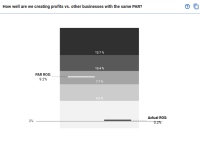 expected distribution of Return on Sales for businesses like yours and your PAr and actual return on sales plotted on it, with your PAR central in the middle category. If you are in this category you are performing close to your expected PAR. Below this, you are underperforming your strategic position and should look at your cost profile for potential improvements. Above it, you are probably outperforming your strategic potential and need to address strategic improvements to maintain that performance.
Impacts on Profit Potential
This section shows the impacts of the variousequation terms on expected (PAR) profitability.
The left side shows the impacts of the factors grouped into 3 categories: your competitive position; market environment; and cost and capital structure. If you have entered data for a single year the impacts are shown as a bar chart with categories having a negative impact shown in red and those having a positive impact on expected profitability in green: If you have entered data for more than 1 year, the barchart for each year can be displayed as well as a line chart showing the changes over time. To the right if the screen the detailed breakdown for each category is shown. If the category chart is the time series chart, the detail chart is also shown over time as below: If a single year is displayed for the category chart, then the detailed impacts for that year are shown to the right: In both cases the category to be displayed can be selected from the drop down menu above the chart. If the category chart is a bar chart you can click on the bar to display the details for that category.
Key Drivers of Profitability and Growth
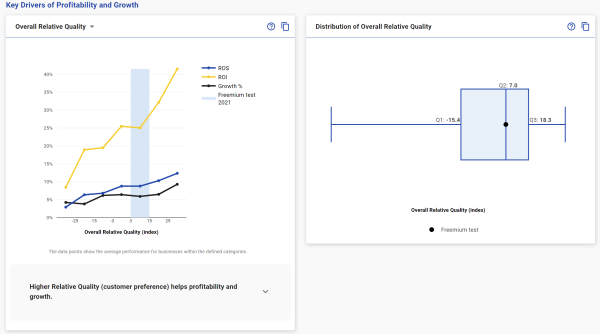 The bottom section shows two charts. To the left are charts detailing the relationship between key factors and profitability and growth from the PIMS research database with your data plotted in the same way as in the input sections. The chart to the right shows the distribution of that data in the PIMS database as a Box and whiskers chart, the end points represent the maximum & minimum and the box the middle 50% of businesses for that variable.
Strategic Peer Analysis
Next: The PAR ROS Model