This is an old revision of the document!
Table of Contents
Survey Configuration
Defining the Survey
There are two web-based applications used to create and carry out a CVA survey:
- The CVA project manager is used to define the scope of the project, schedule interviews and analyse results.
- The CVA interview software can be used by interviewers or can be sent as a link to customers to complete the interview.
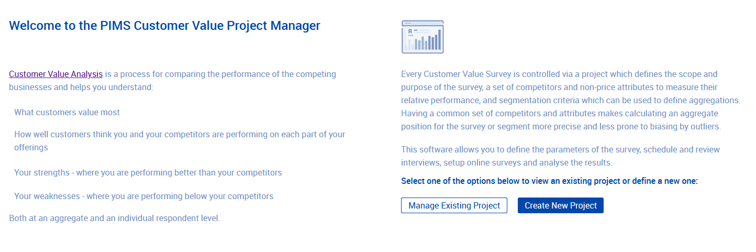 The CVA project manager can be loaded at https://portal.pims.ai/cvaproject/ (please note the final “/”). You will be redirected to our single sign-on login page. If this is the first time you have accessed the software please register.
Once logged in the screen above will be displayed, click Create New Project to start the project definition.
The CVA project manager can be loaded at https://portal.pims.ai/cvaproject/ (please note the final “/”). You will be redirected to our single sign-on login page. If this is the first time you have accessed the software please register.
Once logged in the screen above will be displayed, click Create New Project to start the project definition.
Defining Additional steps
The project creation wizard has screen to define the scope of the project, the key buying factors ( attributes), competitors and how the interview is presented to interviewees. You can also define segmentation options and additional questions as part of the wizard, or they can be added at a later date.
Additional questions are qualitative or numerical questions that can be added to the survey and asked after the numerical input. For example, you could ask:
You can also define segmentation options and additional questions as part of the wizard, or they can be added at a later date.
Additional questions are qualitative or numerical questions that can be added to the survey and asked after the numerical input. For example, you could ask:
- Whether the interviewee expects the market to grow (and by how much)
- What areas you could improve on
- What additional services they think will become important, etc.
The Project Overview screen
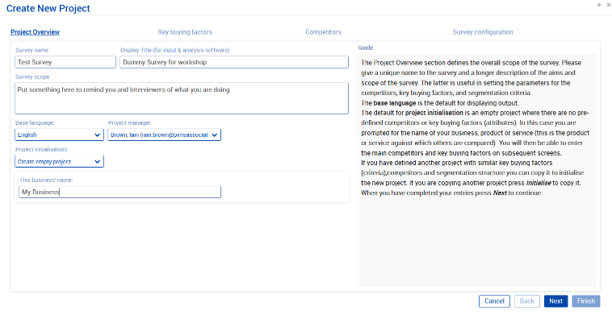
The wizard has 4 stages, with up to 2 additional steps if you selected to define segmentation and additional questions. Each stage has an on-screen guide to help with data entry. The Project overview screen, shown below, defines the name and scope of the survey, the base language (English or German) and how the project is initialized, either created from scratch or copied from an existing project.
Defining Key Buying Factors
This section is either created during an internal workshop or is based on the results of such a workshop, internal discussions, and or pilot interviews. It is important to include a definition of each attribute to make sure interviewees understand what is being asked. We recommend 10 to 12 attributes as the optimum.
 Clicking the + button from the section header displays the Add attribute dialog (shown to the left). Enter a name for the attribute and a definition and press the Add button.

The attribute will then be displayed in the appropriate section of the main screen. Once created, it can be edited in place on the main screen
Defining competitors
Survey configuration
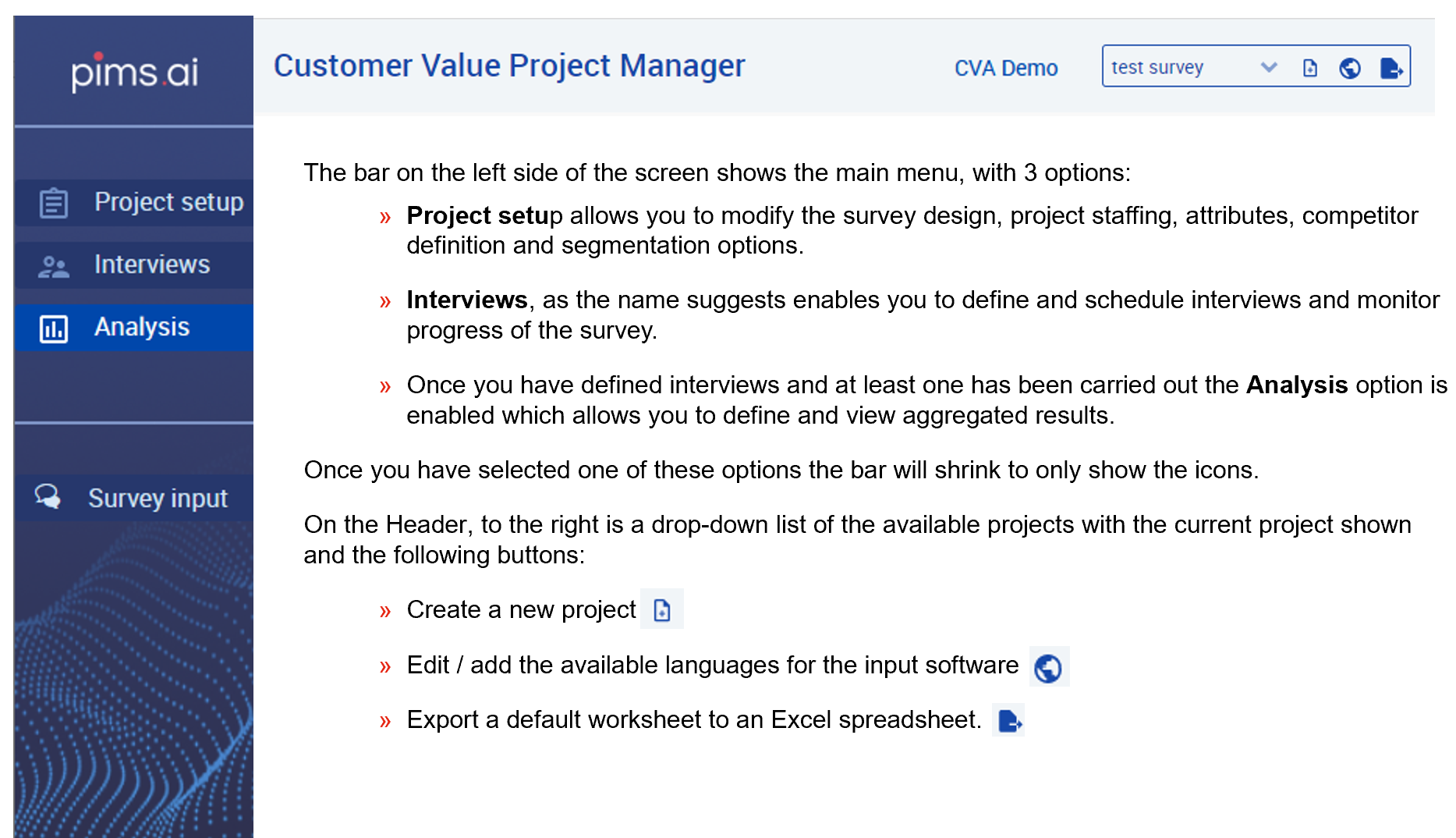
The Main Project Manager Options